Horizontal Nav

Tuesday, 15 July 2014

C# SqlDataReader

SqlDataReader reads database rows one-by-one. It reads in forward order from an SQL database. The SqlDataReader type can be used in a loop to read multiple rows from an SQL database. It provides good performance and strong typing.


Example

Preliminary steps are required before using SqlDataReader on a database table. These steps require configuration on your part. You must target the correct database with a custom connection string and also target the proper table.

To begin, you can create a new SqlConnection and open it. Then you can create a new SqlCommand and call its ExecuteReader method, assigning the reference it returns to an SqlDataReader.

Program that uses SqlDataReader with SqlClient: C#
using System;

using System.Data.SqlClient;
class Program

{

    static void Main()

    {

       //

       // You need to access the project's connection string here.

       //


       string connectionString = ConsoleApplication1.Properties.Settings.Default.ConnectionString;
       //

       // Create new SqlConnection object.

       //
       using (SqlConnection connection = new SqlConnection(connectionString))

       {

           connection.Open();
           //

           // Create new SqlCommand object.

           //
           using (SqlCommand command = new SqlCommand("SELECT * FROM Dogs1", connection))

           {
              //

              // Invoke ExecuteReader method.

              //
              SqlDataReader reader = command.ExecuteReader();

              while (reader.Read())

              {

                  int weight = reader.GetInt32(0);    // Weight int

                  string name = reader.GetString(1);  // Name string

                  string breed = reader.GetString(2); // Breed string
                  //

                  // Write the values read from the database to the screen.

                  //
                  Console.WriteLine("Weight = {0}, Name = {1}, Breed = {2}",weight, name, breed);

              }

           }

       }

    }

}
Output
Weight = 57, Name = Koko, Breed = Shar Pei
Weight = 130, Name = Fido, Breed = Bullmastiff
Weight = 93, Name = Alex, Breed = Anatolian Shepherd Dog
Weight = 25, Name = Charles, Breed = Cavalier King Charles Spaniel
Weight = 7, Name = Candy, Breed = Yorkshire Terrier

Access connection string. Main() first accesses a project-specific ConnectionString. Your project will have its own ConnectionString, which can be generated through the Add Data Source menu item in Visual Studio.

Tip:You must always create a new SqlConnection before using the SqlDataReader code here.

Note:SqlConnection objects use an advanced optimization called connection pooling.

So:Creating these new objects will probably not have a highly adverse affect on overall program performance.

Next, you must create a new SqlCommand object with an SQL text query as its first parameter, and the SqlConnection object reference as its second parameter. This program does not use a stored procedure, which may reduce performance.

Note:The text "SELECT * FROM Dogs1" simply selects all rows from a table called Dogs1 in the database.

Finally, the program creates a new SqlDataReader object from the result of the ExecuteReader() method. The while-loop continues iterating through its loop body as long as the Read() method does not return false.

Tip:This makes it possible to query the SqlDataReader for integers, strings and other types with the GetInt32 and GetString methods.

SqlDataAdapter

A more object-oriented approach to database table reading can be achieved by using DataTables. You can directly populate a DataTable with the data from an SQL database table using the SqlDataAdapter class.

Warning:This approach is slower if you are dealing with vast amounts of data, because all of it must be stored in memory at once.

Summary

We saw the SqlDataReader class. It provides an excellent way to query rows one-by-one from your database tables. It does not require the usage of a DataTable, which can improve performance and decrease memory usage in certain cases.

Tip:Using SqlDataReader is an easy way to print all rows from a table. It is efficient and worth knowing.

C# SqlConnection

The SqlConnection class handles database connections. It initiates a connection to your SQL database. This class is best used in a using resource acquisition statement. We call Open to query the database with SqlCommand.


Example

We emphasize the usage of SqlConnection in a "using" resource acquisition statement. The SqlConnection has a constructor that requires a string reference pointing to the connection string character data.

This connection string is often autogenerated for you by the dialogs in Visual Studio, and sometimes is provided by your hosting company or department. You must include the SqlConnection code before you can perform a database query.

Program that uses SqlConnection: C#
using System;

using System.Data.SqlClient;
class Program

{

    static void Main()

    {
      //

      // First access the connection string.

      // ... This may be autogenerated in Visual Studio.

      //
      string connectionString = ConsoleApplication1.Properties.Settings.Default.ConnectionString;
      //

      // In a using statement, acquire the SqlConnection as a resource.

      //
      using (SqlConnection con = new SqlConnection(connectionString))

      {
          //

          // Open the SqlConnection.

          //
          con.Open();
          //

          // The following code uses an SqlCommand based on the SqlConnection.

          //
          using (SqlCommand command = new SqlCommand("SELECT TOP 2 * FROM Dogs1", con))
          using (SqlDataReader reader = command.ExecuteReader())

          {

             while (reader.Read())

             {

                 Console.WriteLine("{0} {1} {2}",

                   reader.GetInt32(0), reader.GetString(1), reader.GetString(2));
             }

          }

      }

    }

}
 
Output
57 Koko Shar Pei
130 Fido Bullmastiff
This program will not work unless you change the connection string reference to point to a correct one in your environment. To create a connection string to a database, go to the Visual Studio Data menu and select Add New Data Source.

Also:The program assumes the name of an SQL table that will not be present in most databases.

Using statement. The purpose of the using statement in the C# language is to provide a simpler way to specify when the unmanaged resource is needed by your program, and when it is no longer needed.

Internally:The language can transform the using statement into a try-finally statement that calls the Dispose method.

Open method call. The using statement creates a read-only variable of type SqlConnection. You need to actually call the Open method on the SqlConnection instance before using it in an actual SqlCommand.

And:The SqlConnection is passed as the parameter to the SqlCommand. In this way we specify that the SqlCommand "uses" the SqlConnection.

For the example to work correctly, it would need to find the specified SQL table. The specified connection string must be correct. This site contains a more through overview and tutorial of SqlConnection and its supporting constructs.


In the annotated C# language specification, we are advised to use the “using” statement when creating any object that implements the interface IDisposable. Even if the interface does nothing, it is safest to always call it if it exists.

Specification

Note: Many examples of SqlConnection and SqlCommand do not use the using statement reliably, including the one on MSDN.

Summary

We looked at database code. We stressed the proper usage of the SqlConnection class and the resource acquisition pattern. The SqlConnection is required for correctly using other SQL objects such as SqlCommand and SqlDataReader.


Tuesday, 8 July 2014

Insert Data Into Excel Using ASP.Net

This article explains how to insert data into Excel using an OleDB Connection in an ASP.NET page.

Use the following procedure to create the sample.


Step 1: Open Visual Studio and create a new empty website.


Provide the location and name of the website and click on the "OK" button.

Step 2: Now go to the Solution Explorer and right-click on the project, Select Add and then click on Add New Item. 


Step 3: Now one dialog box will be opened; from that select Web Form, provide the name of the web form that you want and click on Add.

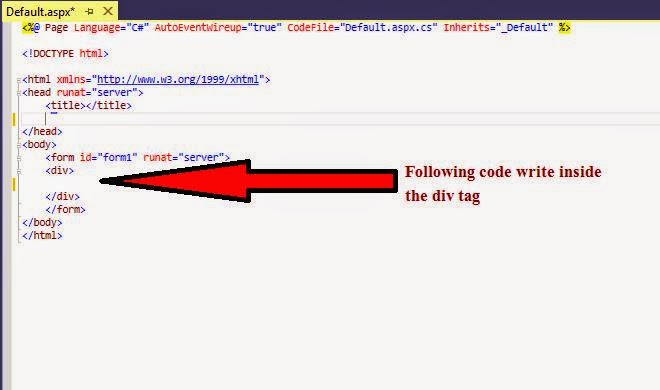
Step 4: Now you will see the following code:


Step 5: Now design your page as you want and suppose we have a page with 5 Text-Boxes and 1 Button control.
  1. 1st Text-Box For Name.
  2. 2nd Text-Box For Email. 
  3. 3rd Text-Box For Mobile No.
  4. 4th Text-Box For Location.
  5. 5th Text-Box For Qualification.
For designing this you need to do the following:


Step 6: For styling purposes here we have taken some CSS style so I am putting these CSS Styles inside the head tag.


Step 7: Now click on the design.


Step 8: Now after clicking on the design you will see the design of the page as in the following:


Step 9: Now create one Excel sheet and put it inside the Solution Explorer. As I have explained above, I am storing the Name, Email, Mobile Number, Location and Qualification so I am creating the Excel sheet as in the following:


Step 10: Now double-click on the Submit button and fire the click event of this button.


Step 10: Before writing the code inside the click event's function, we need to add two namespaces, so add those; the two namespaces are given below: 

using System.Data.OleDb;
using System.Data; 

Step 11: Now on the click event of the Submit button write the following code.

 protected void Button1_Click(object sender, EventArgs e)  
            {  
                string ConStr = "";  
                //getting the path of the file     
                string path = Server.MapPath("InsertDataExcel.xlsx");  
                //connection string for that file which extantion is .xlsx    
                    ConStr = "Provider=Microsoft.ACE.OLEDB.12.0;Data Source=" + path + ";Extended Properties=\"Excel 12.0;ReadOnly=False;HDR=Yes;\"";  
                //making query    
                string query = "INSERT INTO [Sheet1$] ([Name], [Email], [MobileNo], [Location], [Qualification]) VALUES('" + TextBox1.Text + "','" + TextBox2.Text + "','" + TextBox3.Text + "','" + TextBox4.Text + "','" + TextBox5.Text + "')";  
             //Providing connection    
             OleDbConnection conn = new OleDbConnection(ConStr);  
             //checking that connection state is closed or not if closed the     
             //open the connection    
             if (conn.State == ConnectionState.Closed)  
             {  
                 conn.Open();  
             }  
             //create command object    
             OleDbCommand cmd = new OleDbCommand(query, conn);  
             int result = cmd.ExecuteNonQuery();  
             if (result > 0)  
             {  
                 Response.Write("<script>alert('Sucessfully Data Inserted Into Excel')</script>");  
             }  
             else  
             {  
                 Response.Write("<script>alert('Sorry!\n Insertion Failed')</script>");  
             }  
             conn.Close();  
         }  


Step 12: Now build and run the project and fill in some data.


And after clicking on "Submit".


After inserting some data inside Excel, open the Excel file and see that the Excel file has some data that I inserted using my ASP.NET page as in the following: